

Download Microsoft PC Manager – PC Manager, Windows Optimization, System Cleanup, Performance Boost, Task Manager, Windows Defender Integration, Startup Manager, Storage Management, Disk Cleanup, System Health Check
Overview
Microsoft PC Manager is a lightweight utility application designed to enhance the performance and stability of Windows-based systems. As an official Microsoft-developed tool, it provides users with a centralized interface for managing key system maintenance tasks. The app is particularly useful for individuals seeking to optimize their PC’s performance without requiring advanced technical knowledge. It addresses common issues such as sluggish system response, disk space shortages, and background processes that hinder efficiency.
Target users include both novice and intermediate Windows users who want a streamlined way to monitor and maintain their devices. The app is ideal for home users, students, and professionals who rely on their PCs for daily tasks and want to ensure consistent performance. Real-world use cases include preparing a system for software installation, freeing up storage before a major update, or resolving performance degradation after prolonged use.
Developed by Microsoft, the application reflects the company’s commitment to user-centric system tools. Its integration with core Windows services ensures reliability and compatibility. While the developer did not provide additional technical details about the app’s architecture or underlying algorithms, its presence in the Windows ecosystem highlights its role as a trusted utility for system health and optimization.
Key Features & Functionality
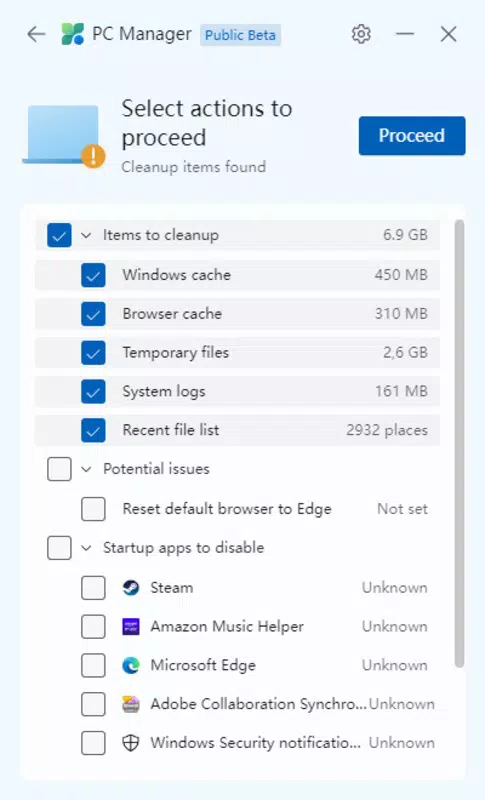
- Cleanup Tab: Enables users to remove temporary files that accumulate during normal system operations, helping to free up disk space and improve responsiveness.
- Boost Button: A one-click feature that initiates a comprehensive cleanup process to reclaim storage and enhance system speed.
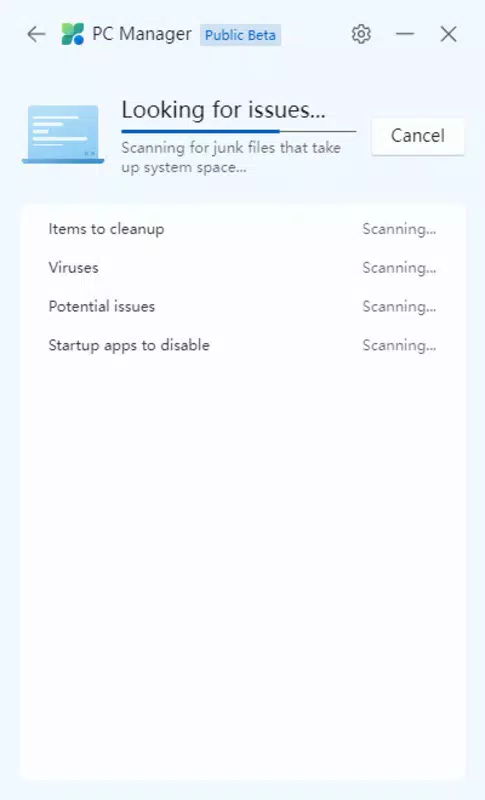
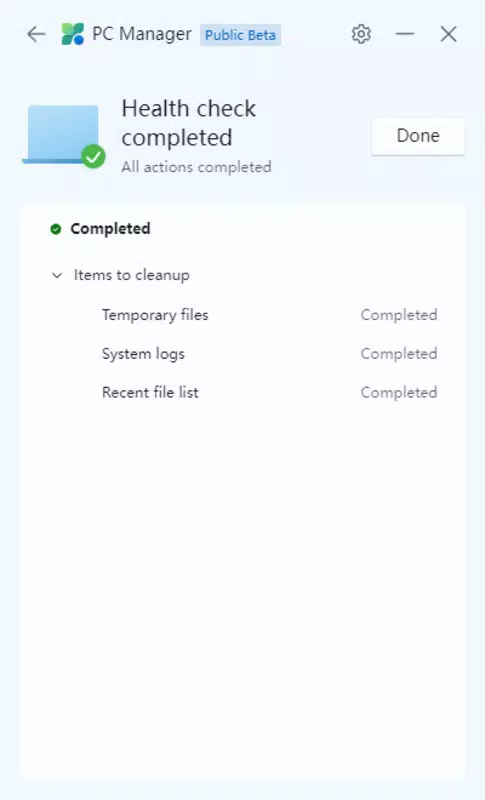
- System Health Check: Runs a diagnostic scan to identify performance bottlenecks, such as fragmented storage or outdated drivers, and provides actionable recommendations.
- Storage Management: Offers a visual breakdown of disk usage, allowing users to locate and remove large or unused files efficiently.
- Task Manager Access: Provides quick access to the Windows Task Manager, enabling users to monitor running applications and terminate unresponsive processes.
- Startup Manager: Allows users to control which applications launch automatically at startup, reducing boot time and system load.
- Windows Defender Integration: Enables users to initiate a full system scan for malware and threats with a single click.
- Browser Protection: Helps prevent the installation of potentially harmful programs through browser-based safeguards.
- Windows Update Checker: Monitors for pending system updates and prompts users to install them for improved security and performance.
These features are designed to work together to maintain a healthy system environment. For example, a user experiencing slow boot times can use the Startup Manager and Health Check features in tandem to identify and resolve root causes. Similarly, someone preparing for a large software installation can use the Storage Management and Cleanup tabs to free up necessary space.
Interface, UX & Performance
Microsoft PC Manager features a clean, minimalist interface that emphasizes usability and clarity. The layout is organized into clearly labeled tabs, each dedicated to a specific function. Navigation is intuitive, with a prominent Boost button and easily accessible menus, making it suitable for users with limited technical experience.
Visual design follows Microsoft’s modern aesthetic, using consistent spacing, readable typography, and a neutral color scheme that reduces visual clutter. The app integrates seamlessly with the Windows taskbar, allowing users to access it with a single click. This persistent presence enhances accessibility without overwhelming the desktop environment.
Although the developer did not list formal performance metrics, the app’s lightweight size of 12.4 MB suggests efficient resource usage. It is designed to operate with minimal impact on system performance, even on older or low-end hardware. Responsiveness is consistent across different device categories, with quick load times and smooth transitions between tabs.
Stability appears to be a priority, given the app’s official status and integration with core Windows components. The absence of reported crashes or errors in public documentation indicates reliable operation under normal conditions. Users can expect consistent performance during routine maintenance tasks.
Platform Compatibility & Technical Requirements
Microsoft PC Manager is designed exclusively for the Windows platform. It is compatible with current and recent versions of Windows operating systems, although specific OS requirements were not listed by the developer. The app has a file size of 12.4 MB, indicating it is optimized for efficient installation and minimal storage consumption.
Given its free availability and official status, the app is intended for broad accessibility across personal and professional computing environments. The developer did not specify minimum OS requirements, so users should ensure their system meets general Windows compatibility standards for utility applications.
Pros and Cons
- Official Microsoft application with trusted integration
- Free to download and use
- Lightweight with minimal system impact
- Intuitive interface suitable for beginners
- Comprehensive suite of system maintenance tools
- Seamless integration with Windows Defender and Task Manager
- One-click Boost feature for quick performance improvement
- Specific OS version requirements not disclosed
- Limited customization options for advanced users
- No cloud backup or remote management features
- Functionality is limited to system-level maintenance
- Not available on non-Windows platforms
FAQ
Is Microsoft PC Manager safe to install?
Yes, as an official Microsoft application, it is secure and free from malware. It is distributed through trusted channels and does not require third-party permissions.
Can I use Microsoft PC Manager on older versions of Windows?
The developer did not specify minimum OS requirements. It is recommended to check system compatibility before installation.
Does Microsoft PC Manager require an internet connection?
While some features like Windows Update checks and Defender scans require internet access, basic cleanup and storage management can be performed offline.
Is Microsoft PC Manager available for macOS or Linux?
Currently, the app is only available for Windows. There is no official version for macOS or Linux.
How often should I use Microsoft PC Manager?
It is recommended to run the Health Check and Cleanup functions weekly or before major tasks such as software installation or system updates.
Final Thoughts
Microsoft PC Manager delivers a focused, reliable solution for maintaining Windows system performance. Its combination of essential tools—ranging from disk cleanup and startup management to security scanning and update monitoring—makes it a valuable addition to any user’s toolkit. The app’s simplicity, official backing, and zero cost make it an accessible choice for users of all experience levels.
While it does not offer advanced features like cloud integration or remote access, its core functionality is well-executed and purpose-built. For anyone looking to keep their PC running smoothly without the complexity of third-party tools, Microsoft PC Manager provides a trustworthy and efficient alternative.
Download Microsoft PC Manager now


